Documentation
Bulk Participants for JSM helps Jira Service Management administrators add, remove, or replace Request Participants across multiple requests using a preview-first workflow.
Requirements
Bulk Participants for JSM is designed for Jira Service Management Cloud. Installation of Marketplace apps requires the appropriate Atlassian site or organization administration permissions.
The app performs Jira Service Management operations using the permissions of the signed-in Atlassian user. A user must already have permission to access and modify the relevant requests.
Installation
Find Bulk Participants for JSM in Atlassian Marketplace and select Try it free.
Select the Atlassian site where Jira Service Management is installed and review the app details and requested permissions.
Select Start free trial to complete installation. Atlassian manages the Marketplace trial, subscription, and license.
In Jira, open Apps and select Bulk Participants for JSM.
Initial setup and configuration
No separate configuration screen, external account, API token, or external service is required. The app runs on Atlassian Forge and uses the signed-in user's Jira permissions.
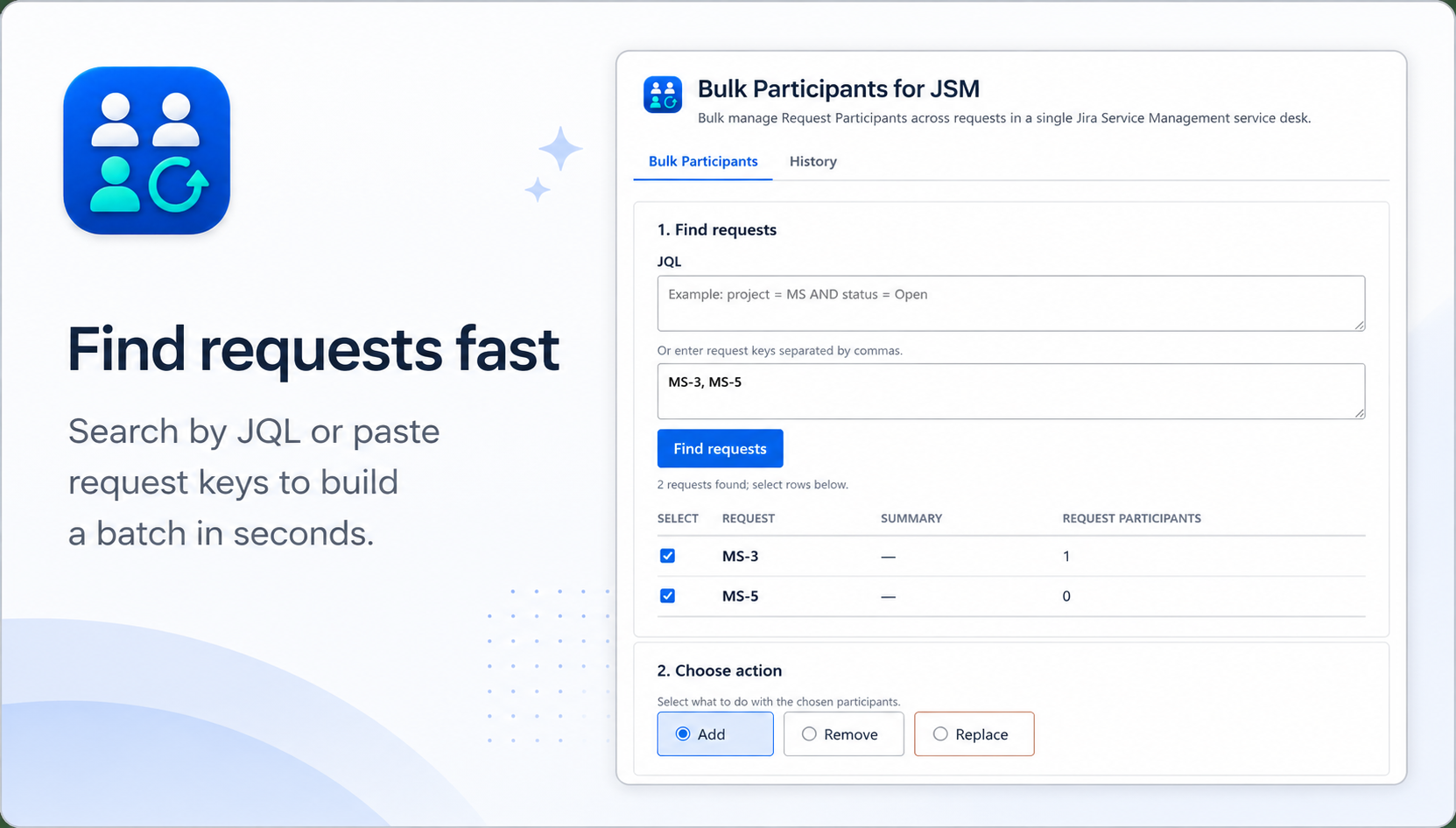
Start by selecting the Jira Service Management requests you want to work with. Requests can be selected using JQL or by pasting issue keys.
Using the app
1. Find the requests you want to update
Enter JQL or paste Jira request keys. Review the returned request set before proceeding.
2. Choose Request Participants
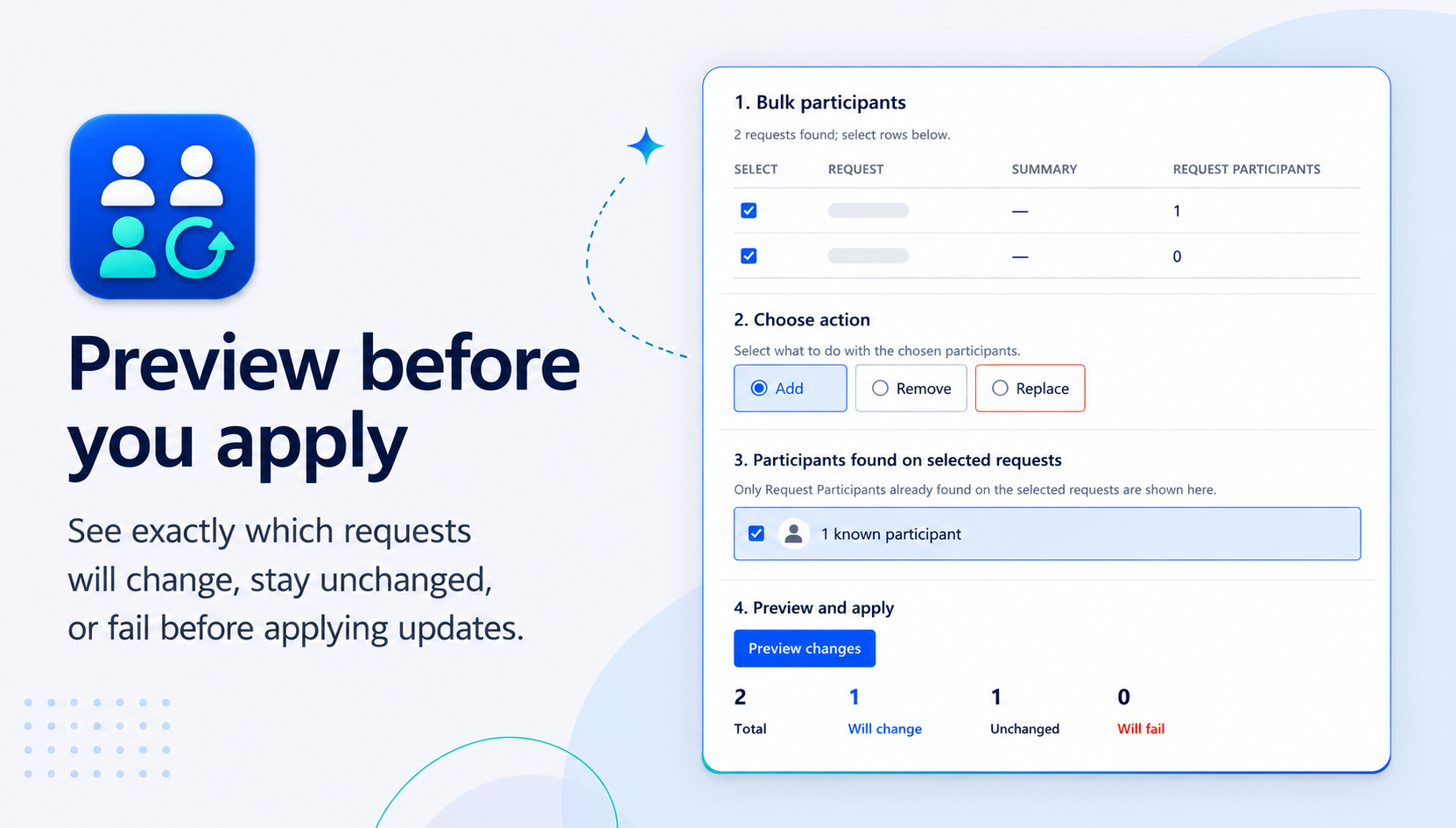
The participant selector shows Request Participants that are already present on the selected requests. Duplicate Atlassian accounts are combined into a single participant choice.
3. Choose Add, Remove, or Replace
Add adds the selected participant to requests where that participant is not already present.
Remove removes the selected participant from requests where that participant is currently present.
Replace replaces the existing Request Participant list with the selected participants. Because this can remove existing participants, Replace requires explicit confirmation.
4. Preview every operation
Preview is mandatory. The app calculates the expected effect of the operation before Apply becomes available.
Review the requests, selected participants, and expected changes before continuing.
5. Apply the changes
Select Apply after reviewing the Preview. Changes are executed using the permissions of the signed-in Atlassian user.
Add and Remove operations are designed to be idempotent. Requests that are already in the desired state are reported as unchanged rather than being modified unnecessarily.
Replace also checks that the participant state has not changed since Preview. If it has changed, the operation fails safely and you should run a new Preview before applying the replacement.
An active Marketplace trial or license is required to Apply changes. The app can still display request information, Preview, and history when Apply is unavailable because of licensing.
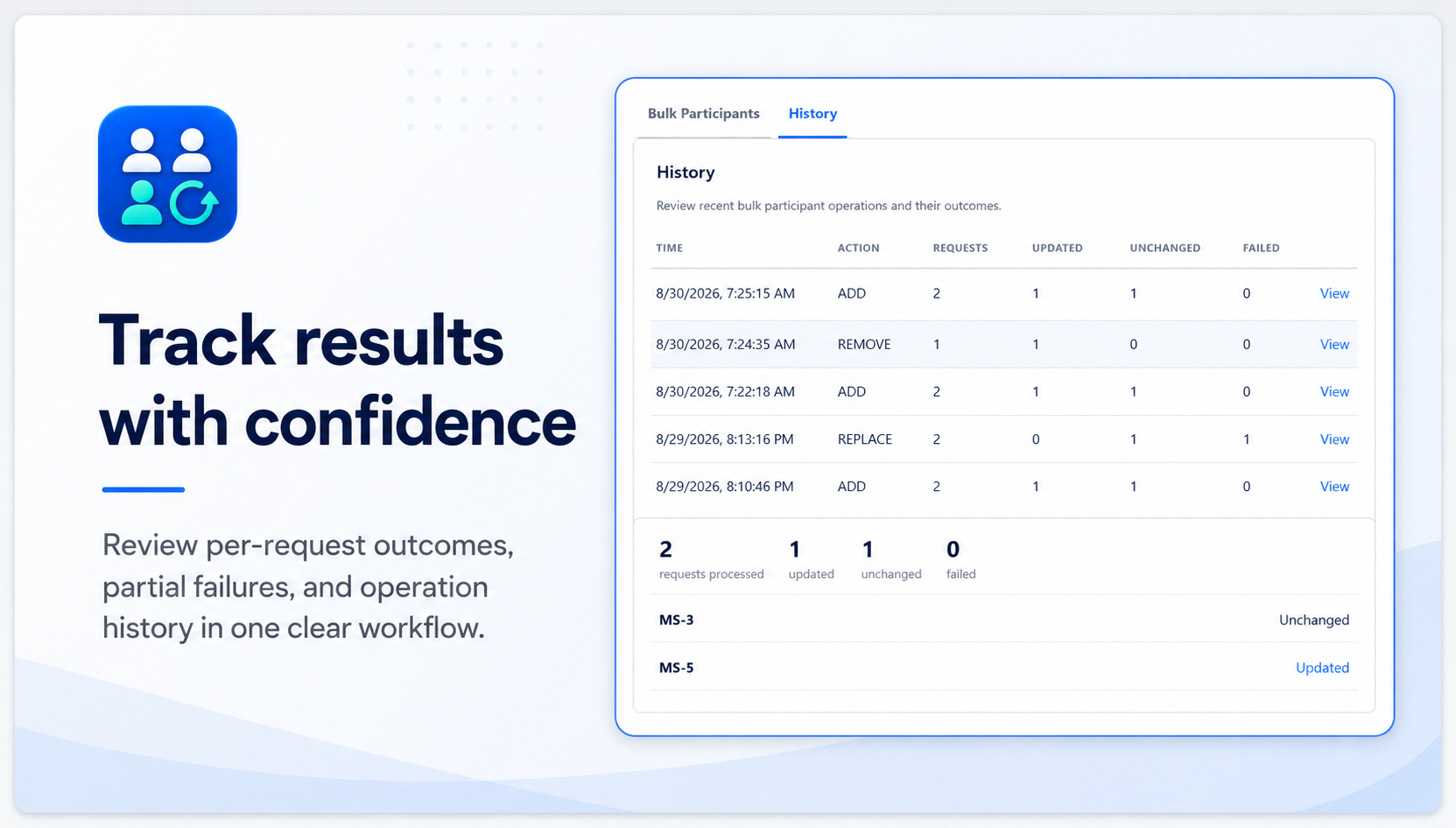
6. Review results and history
After Apply, results show which requests changed successfully, which were already unchanged, and which could not be updated.
Individual request failures do not silently roll back successful updates to other requests.
Troubleshooting
No participants are available
The participant pool is built from Request Participants already present on the selected requests. Select requests that currently contain participants or include another request from the same service desk that contains the participant you need.
Mixed service desks
A bulk operation is limited to one Jira Service Management service desk. Divide the requests into separate batches by service desk and try again.
Insufficient permission
The app uses the signed-in user's Jira permissions. Confirm that the user has access to the selected Jira Service Management requests and permission to modify Request Participants.
State changed after Preview
If Request Participants changed after a Replace Preview was created, the app stops the Replace operation. Run Preview again to review the current state before applying changes.
Apply is disabled
Confirm that the app has an active Atlassian Marketplace trial or subscription. Preview and read-only functionality may remain available when a license is inactive, but Apply requires an active license.
Support
For additional help, visit the support page or email support@getreadycheck.com.